 Oleon
OleonFeature
Meet Oleon Shopkeeper: run your online shop from one place
New in Oleon for businesses that sell online: see how your shop is doing at a glance, confirm and pack orders, print shipping labels, send customers a tracking link, and keep count of cash on delivery. No technical skills needed.
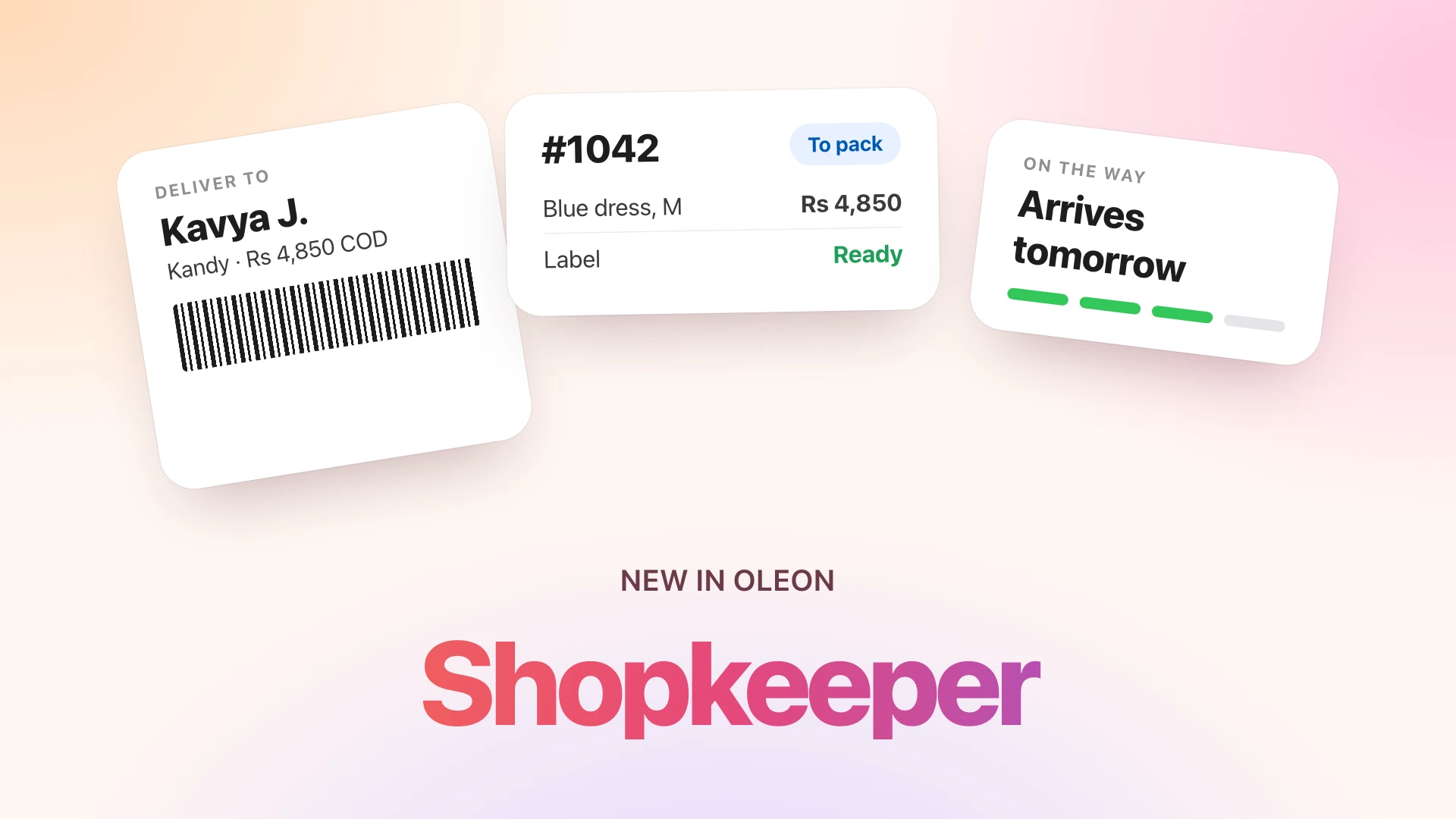
If you sell on WhatsApp, Instagram or Messenger, a lot of your day goes into what happens after a customer says "I'll take it": writing the order down, checking it is real, packing it, writing the address, answering "where is my parcel?", and chasing the courier for the cash. Oleon Shopkeeper brings all of that into one place, next to your chats.
What is Oleon Shopkeeper?
Oleon Shopkeeper is the name for everything in Oleon that helps you run your shop once the chat turns into a sale. You find it under Orders in your Oleon workspace, right beside the conversations the orders came from.
You do not need a website, a developer or any setup to start. If you already take orders in Oleon, these features are there for you.
How does an order travel from chat to doorstep?
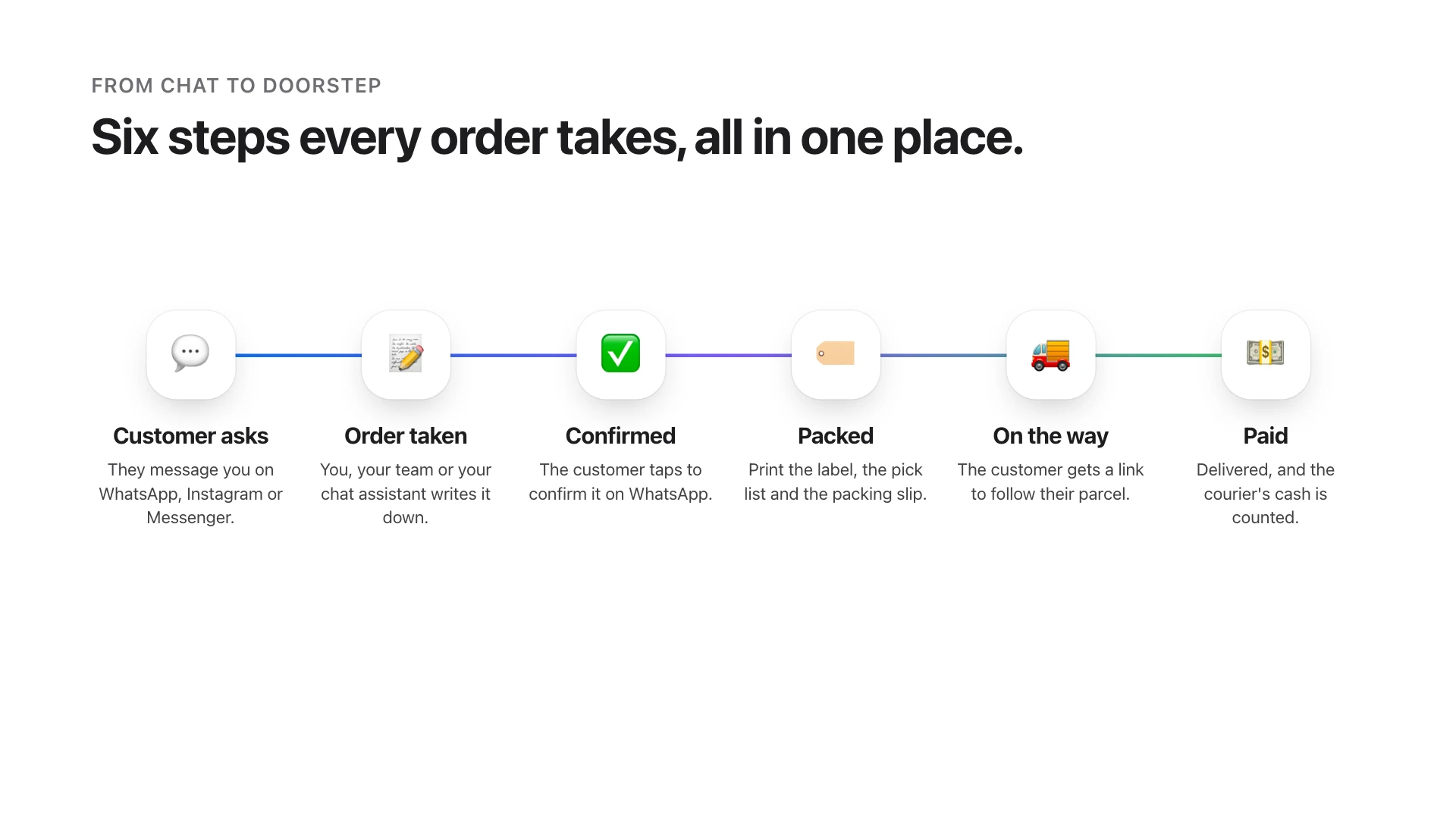
- A customer asks. They message you on WhatsApp, Instagram or Messenger.
- The order is taken. You, someone on your team, or your chat assistant writes it down in Oleon.
- The customer confirms it. Oleon can ask them to confirm on WhatsApp, so you only pack orders people really want.
- You pack it. Print the shipping label, a pick list and a packing slip.
- It is on the way. The customer gets a link to follow their parcel.
- You get paid. The order is delivered, and the cash the courier collected is counted.
How can I see how my shop is doing?
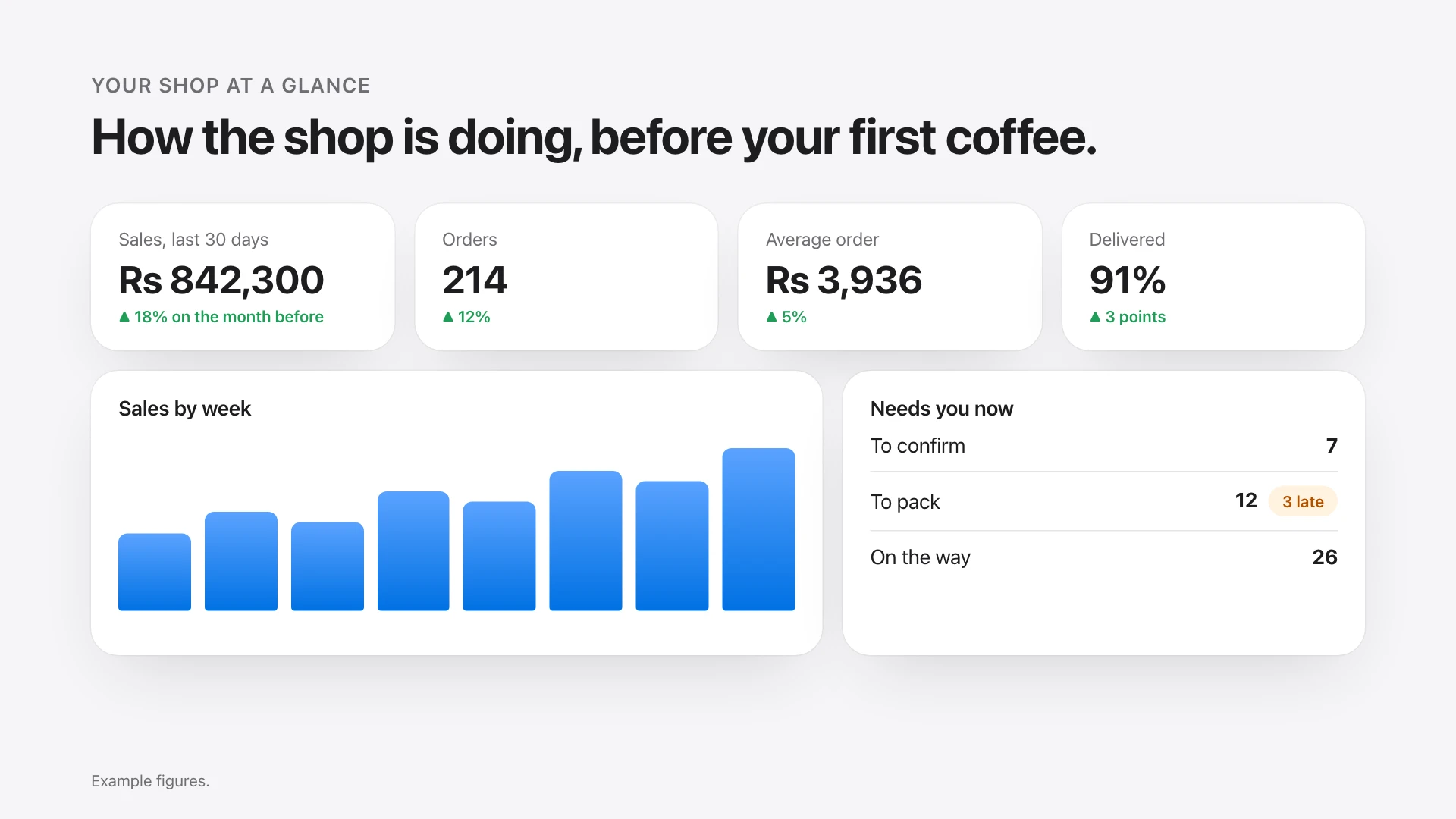
Open Orders, and Today at a glance (the Overview tab) is the first thing you see. It answers the questions a shop owner asks every morning:
- How much did we sell? Sales, number of orders, the average order and how many were delivered, for the last 7, 30 or 90 days or 12 months, each compared with the period before.
- What needs me now? Orders waiting to be confirmed, packed or delivered, with the late ones counted, and one tap to open them.
- What sells best? Your best-selling products, and how many customers came back to buy again.
- Where do my orders go? A map of the towns you deliver to, sized by how many orders each one sends, and which towns send parcels back.
- When do people order? The busiest hours of the day, so you know when to have someone answering.
How do I keep track of every order?
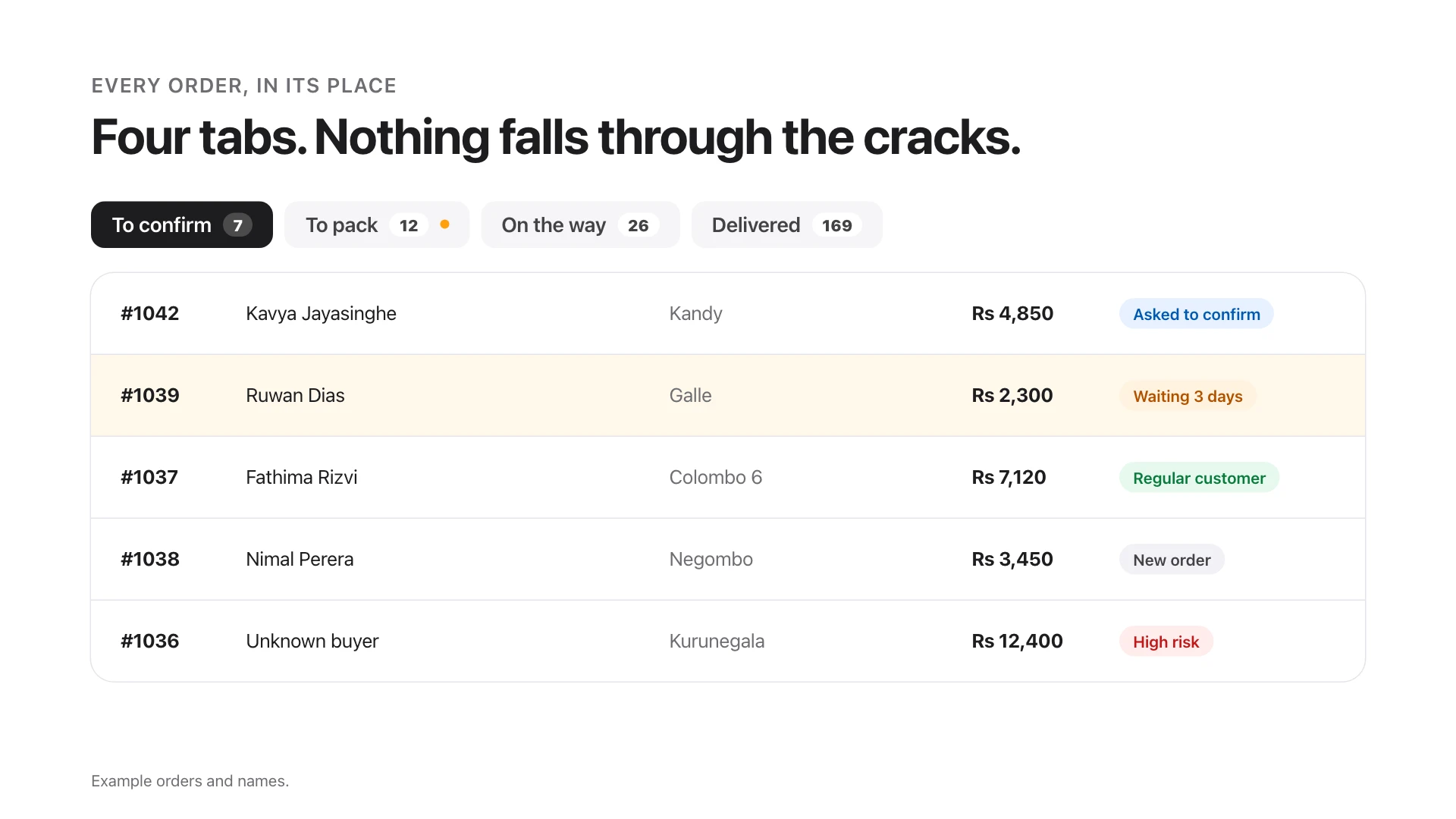
The Order Board sorts every order into tabs: To confirm, To pack, On the way and Delivered, with cancelled orders kept apart. Each tab shows how many orders are in it, so you see at a glance where the work is.
An order that has waited too long gets a small amber mark and says how long it has been waiting, so nothing is forgotten at the bottom of a list.
You can search any order by its number, the customer's name or their phone number. Tick several orders and move them to the next step together, assign them to a teammate, or print their labels. Need to change an order? Add or remove items, copy it for a repeat customer, or reopen one that was cancelled.
How do I avoid fake or risky orders?
Cash-on-delivery orders that are never collected cost you the courier fee and a wasted trip. Confirm & Protect helps in three ways:
- Ask the customer to confirm. With one tap, Oleon asks the customer on WhatsApp to confirm their order. You can also turn this on for every new WhatsApp order, in your shop settings.
- See the customer's history. Each order shows how many orders this customer placed before, how many were delivered, and how many came back. Customers with a poor record are marked Watch or High risk.
- Block a customer who keeps refusing parcels, with a note saying why, so your whole team knows.
How do I print shipping labels?
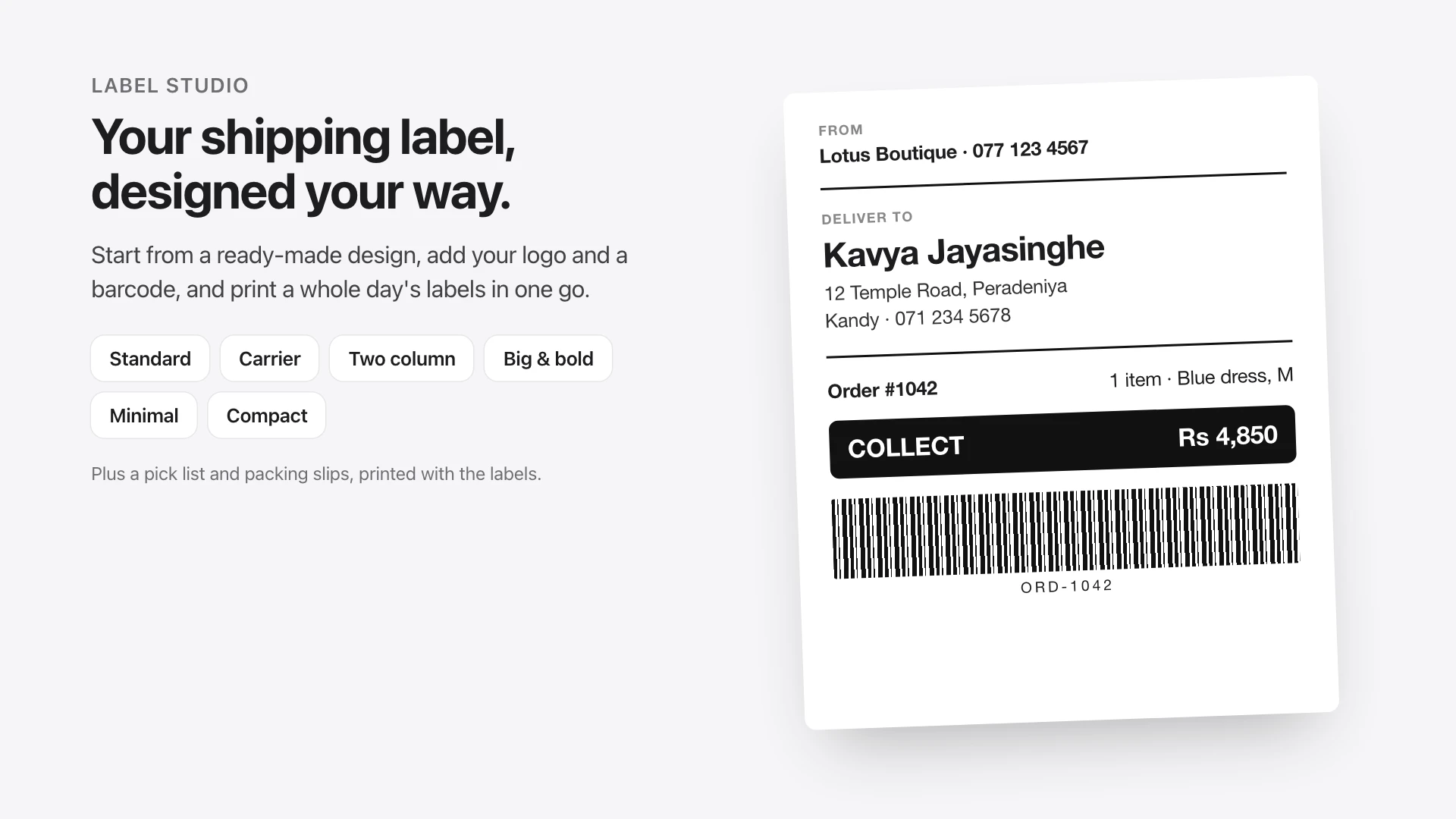
Label Studio lets you design your shipping label the way you would make a card: pick a ready-made design and change what you like. There are six to start from: Standard, Carrier, Two column, Big & bold, Minimal and Compact.
Add your logo, a barcode, the cash to collect, the list of items, or marks such as "Fragile". Then select the day's orders and print every label at once.
With the labels you can also print a pick list, which adds up every item you need to take off the shelf, and a packing slip for each parcel.
How do my customers know where their order is?
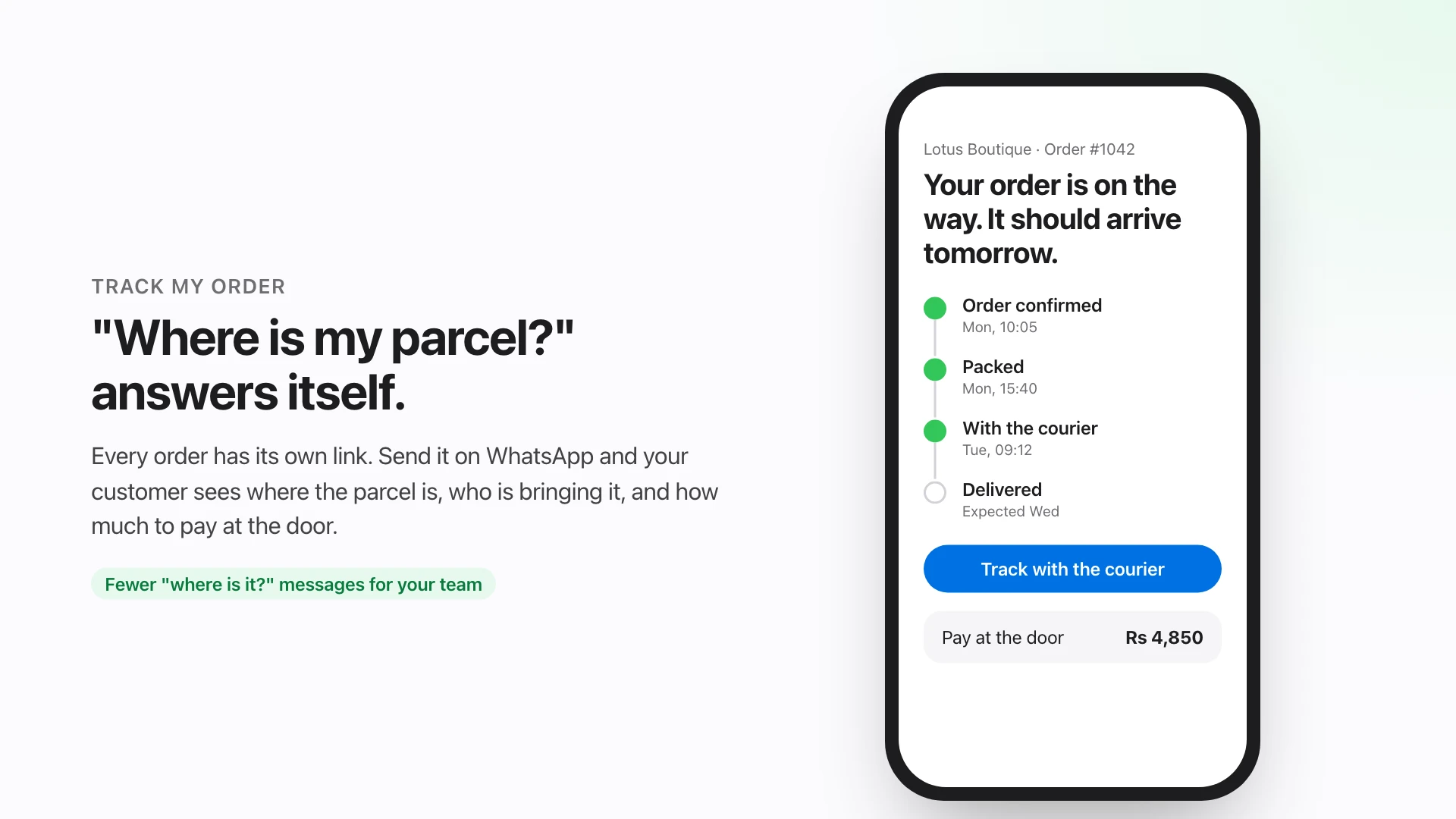
Track My Order
Every order has its own tracking link. Send it to your customer on WhatsApp and they can see, any time, whether the order is confirmed, packed or with the courier, who is bringing it, and how much to pay at the door.
That means fewer "where is my parcel?" messages for your team to answer, and customers who feel looked after.
How do I keep track of cash on delivery?
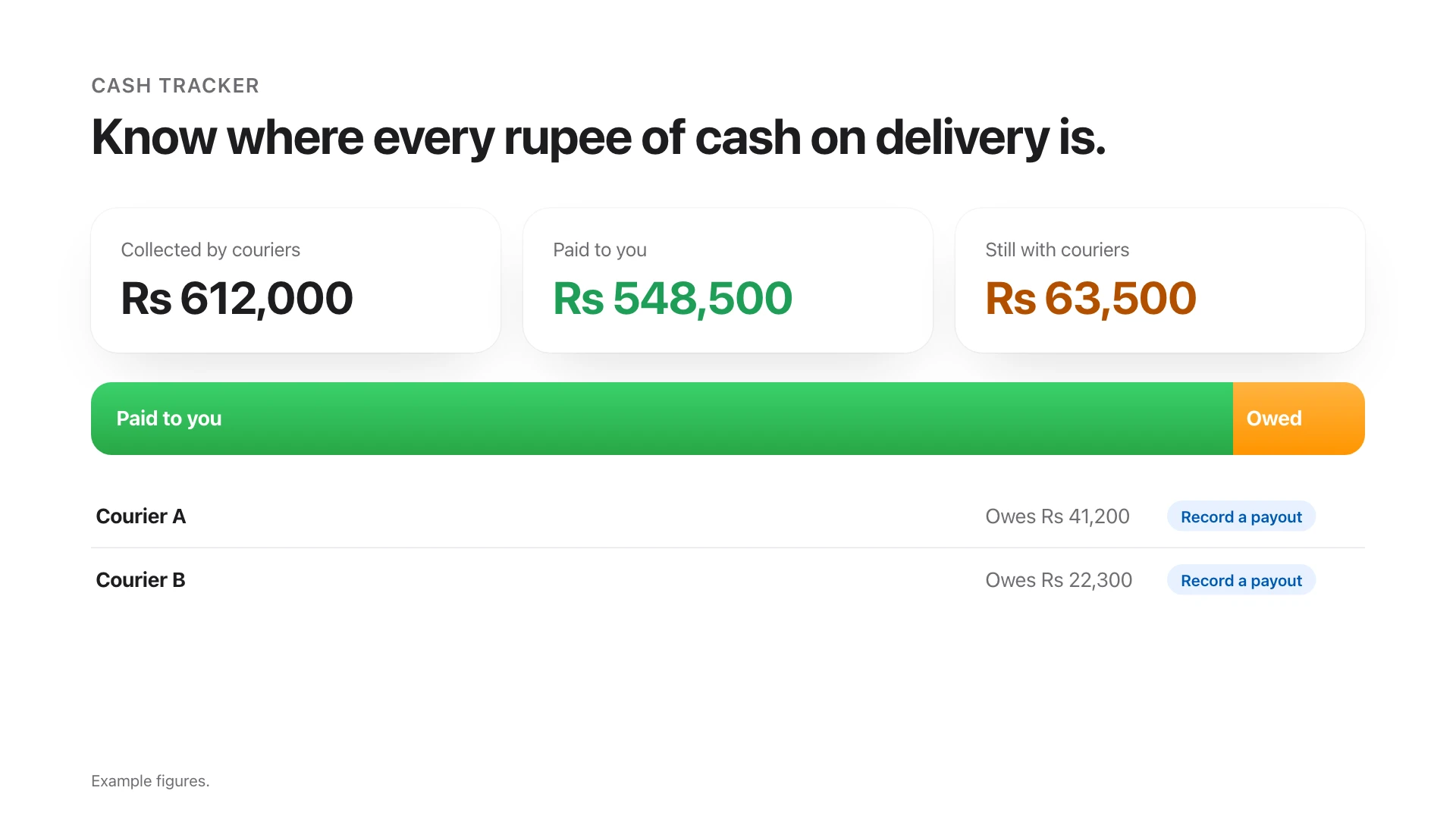
When customers pay at the door, the money sits with the courier until they pay you. Cash Tracker (the Cash on delivery tab in Orders) keeps count for you:
- How much your couriers have collected, how much they have paid you, and how much is still with them.
- A list of couriers to settle with. When a courier pays you, tick the orders the payment covers and note their charges.
- A history of every payout, which you can download as a spreadsheet for your accountant.
- Orders that came back undelivered, so you never wait for cash that is not coming.
Can I connect my Shopify or WooCommerce store?
Yes. If you already have an online store on Shopify or WooCommerce, you can connect it to Oleon from your shop settings. Your products come into Oleon, and each order shows where it came from. This connection is in beta, which means it is ready to use and we are still improving it.
6
ready-made label designs
4
tabs that every order moves through
1
tracking link for every order
How do I start?
- Open your Oleon workspace and go to Orders. Today at a glance opens first.
- Turn on ask customers to confirm for new WhatsApp orders in your shop settings.
- Open Label Studio, pick a design and add your logo.
- Send your next customer their tracking link from the order's menu.
- Record your next courier payment in Cash Tracker.
Questions about setting it up? Contact our team from inside Oleon.
The pictures in this article use made-up shops, customers and figures to show how each feature looks.