 Oleon
OleonFeature
Meet Team Live: see who's online and who's answering
When several people answer customers, two of them often reply to the same person while another chat waits. Team Live shows who is online, what each person is working on, and who is already typing, so your team works like it is in one room.

If more than one person answers your customers, you know the problem: two people reply to the same customer at once, and another customer waits because everyone thought someone else had it. Team Live shows your whole team, live, inside Oleon, so everyone can see who is doing what.
What is Team Live?
Team Live is the name for the part of Oleon that shows your team to each other as they work. It is always on: there is nothing to install or set up. As soon as two people are working in the same Oleon workspace, they can see each other.
How do I see who is online?
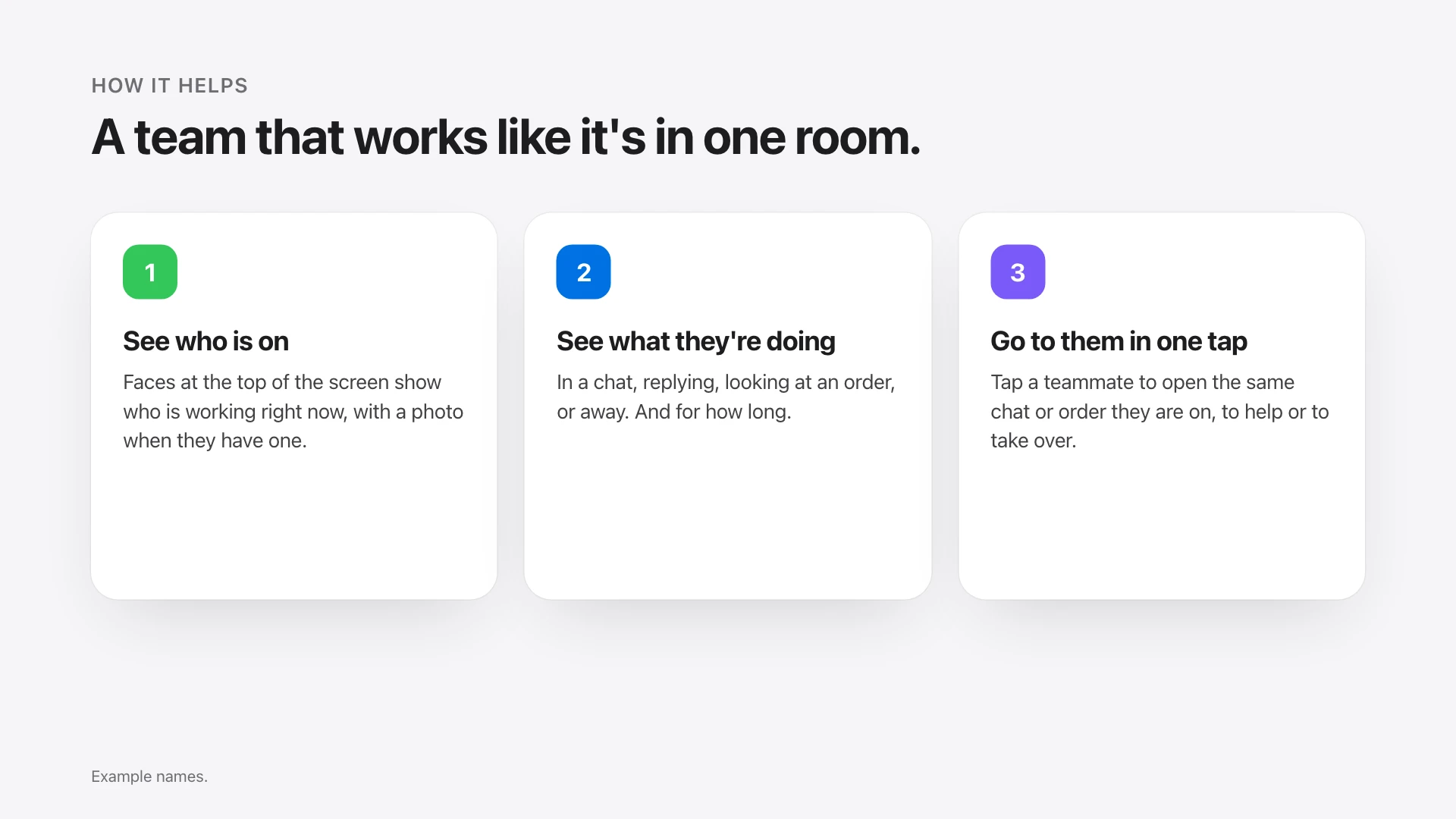
Faces at the top of the screen show who else is working in your workspace right now, with their photo if they have one. When you are the only one in, it stays quiet. When someone joins, their face appears.
Click the faces to open the full list. For each person it shows:
- What they are doing: in a chat, replying to a customer, looking at an order, on another screen, or away.
- Who or what it is about, such as the customer they are replying to or the order number they have open.
- How long they have been there, for example "for 12m".
How does it stop two people answering the same customer?
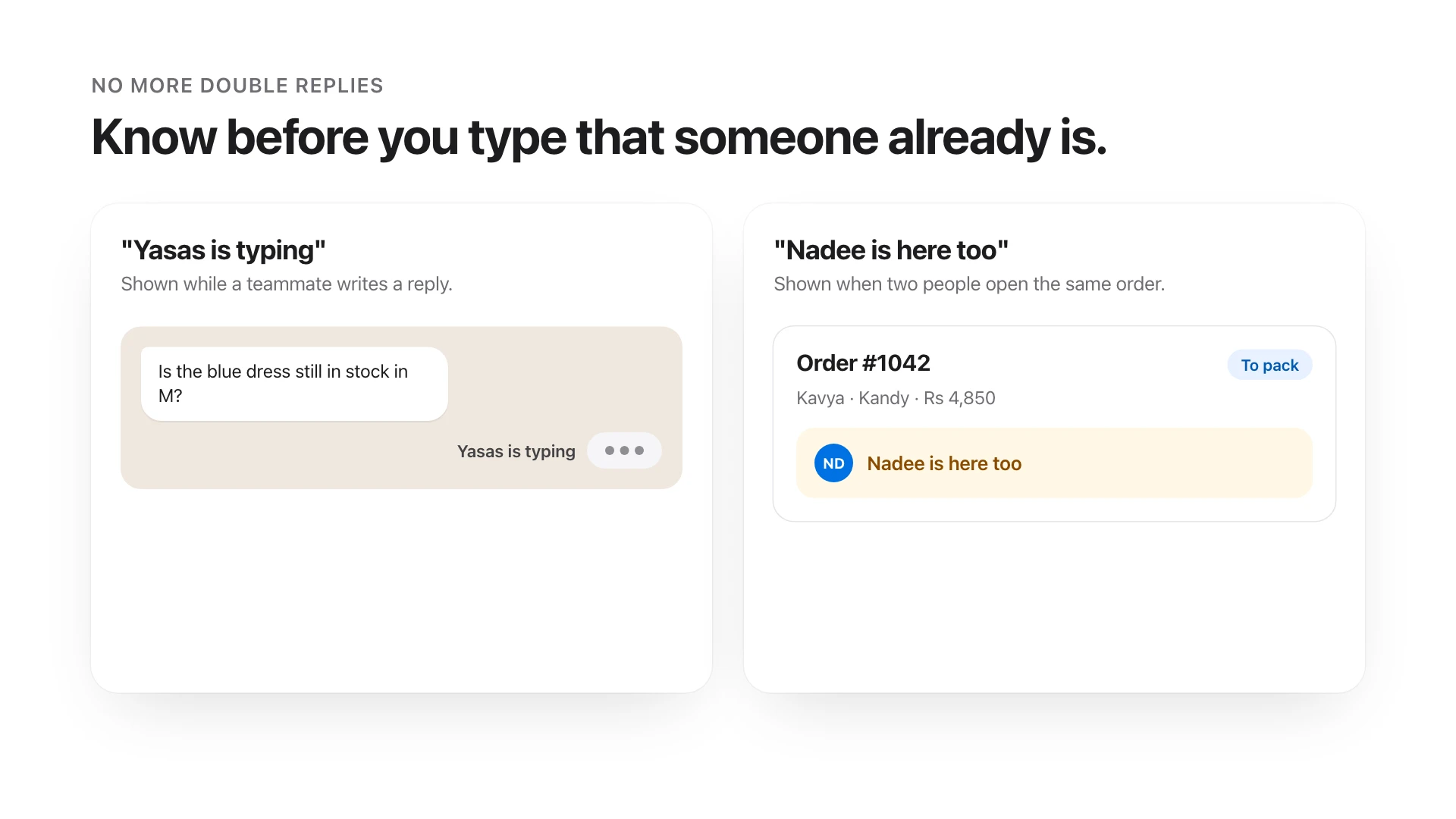
While a teammate is writing a reply, Oleon shows "Yasas is typing" with moving dots, so you can leave that customer to them and pick up someone who is still waiting.
Orders work the same way. If someone else already has an order open, it says "Nadee is here too", and the list of orders shows who has each one open. No more two people packing, calling or changing the same order at once.
Can I jump to where a teammate is?
Yes. In the list of who is online, tap a teammate and Oleon opens the same chat, order or page they are on. It is the quickest way to help a colleague with a difficult customer, to check an order together, or to take over when someone goes on a break.
Who is Team Live for?
- Shops with a few people on WhatsApp, so customers get one clear answer instead of two.
- Teams with shifts, so the next person can see what is still open and who was on it.
- Owners and managers, who want to see at a glance that every chat has someone on it.
0
setup: it is on for everyone
1
tap to go where a teammate is
Live
typing, chats and orders as they happen
How do I start?
There is nothing to turn on. Invite your team to your Oleon workspace, and the next time two of you are working at the same time, you will see each other. Add a profile photo so your teammates recognise you at a glance.
The pictures in this article use made-up names and orders to show how each feature looks.